


On this page
What a team announcement app does
A team announcement app sends one important update to the whole team and tracks who has taken it in. The key difference from a group message is the acknowledgement: each player or parent taps to confirm, so the coach can follow up with the few who haven't instead of asking the whole team "did everyone see this?"
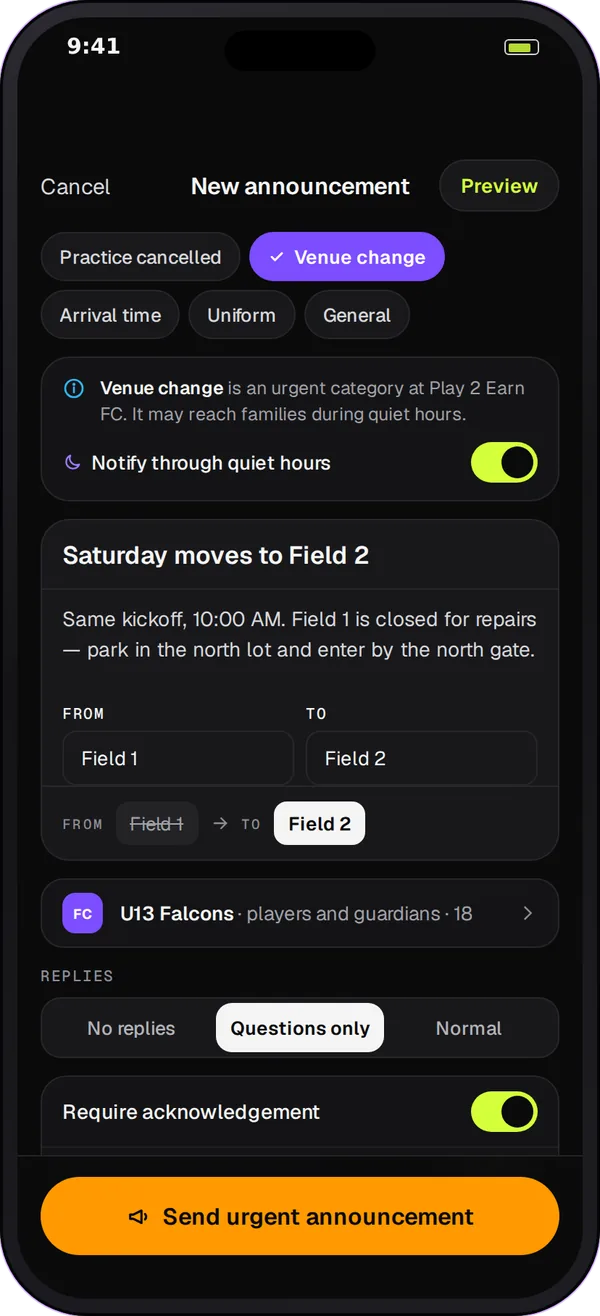
How Team Chat announcements work
-
Acknowledge, not just read
Each person taps to acknowledge the announcement. That is a deliberate action, unlike a read tick, which only shows that the chat was opened.
-
Waiting, acknowledged and questions
The coach sees three lists drawn from the same record: who has acknowledged, who is still waiting and who has asked a question. The counts and the names match.
-
Remind only the people waiting
One tap sends a reminder to everyone still waiting. People who already acknowledged aren't pinged again.
-
Replies on your terms
Choose whether people can reply normally, ask questions only, or not reply at all. "Questions only" keeps an announcement from turning into a reply-all thread.
-
Pinned until acknowledged
An announcement can stay pinned at the top of the chat until everyone has acknowledged it, so it doesn't scroll away.
-
Categories for the urgent ones
Mark an announcement as general, practice canceled, arrival time, uniform or venue change. The club can let practice-canceled, venue-change and arrival-time announcements through people's quiet hours.
Post an announcement in 4 steps
-
Pick the channel or announcement space
Post in the team's channel, or in an announcement space where only staff post and everyone else reads and acknowledges.
-
Write it and choose the category
Keep it short: what changed, when and what people should do. Pick the category so urgent changes are flagged as urgent.
-
Set acknowledgement and replies
Ask for acknowledgement, choose the reply setting and decide whether it stays pinned until everyone has acknowledged it.
-
Check the waiting list and remind
Look at the waiting list a few hours later and send one reminder to the people who haven't acknowledged yet.
Read receipts vs acknowledgements
| Read receipt | Acknowledgement | |
|---|---|---|
| What it shows | A person's chat was opened past this message | The person tapped to confirm this announcement |
| Who it's for | Any message | Announcements that need action or attention |
| Follow-up | Ask the whole group | Remind only the people still waiting |
| Questions | Mixed in with replies | Listed with the acknowledgements |
Team Chat has both. Read receipts show how far each person has read in a conversation; acknowledgements are for the messages that matter.
Announcement checklist
- Say what changed in the first line.
- Give the new time, place or kit exactly.
- Say what people should do, for example "reply with a question if you can't make it".
- Choose the category so urgent changes can get through quiet hours.
- Ask for acknowledgement and set replies to questions only.
- Check the waiting list before the deadline and send one reminder.
- Change the game or practice in the schedule too, so the event shows the right details.
Questions
A message is part of the conversation. An announcement is an update you need everyone to take in: it asks each person to acknowledge it, shows the coach who is still waiting, can stay pinned until everyone has acknowledged it, and limits replies if you choose.
Parents acknowledge from their own account, and players from theirs. If you need every parent on the waiting list, post the announcement where parents are members, such as the Parents channel or a club announcement space, rather than in the players' Team channel that parents only read.
Coaches and club admins post announcements in their team's conversations. Announcement spaces are post-by-staff, so families read and acknowledge without replying to everyone.
Quiet hours hold ordinary notifications. A club can let urgent categories through: practice canceled, venue change and arrival time. Other announcements wait until quiet hours end.
Changing a team event or game in the schedule sends in-app, email and push notices to the affected families by default. Many coaches also post an announcement when a change needs explaining or acknowledging.
