


On this page
What a team sign-up app does
A team sign-up app collects who is doing what: who is driving to the away game and how many seats they have, who brings snacks on which week, who volunteers at the team table, and who still needs a jersey. The point is a clear list everyone can see, without a reply-all thread of "I can do the 14th!"
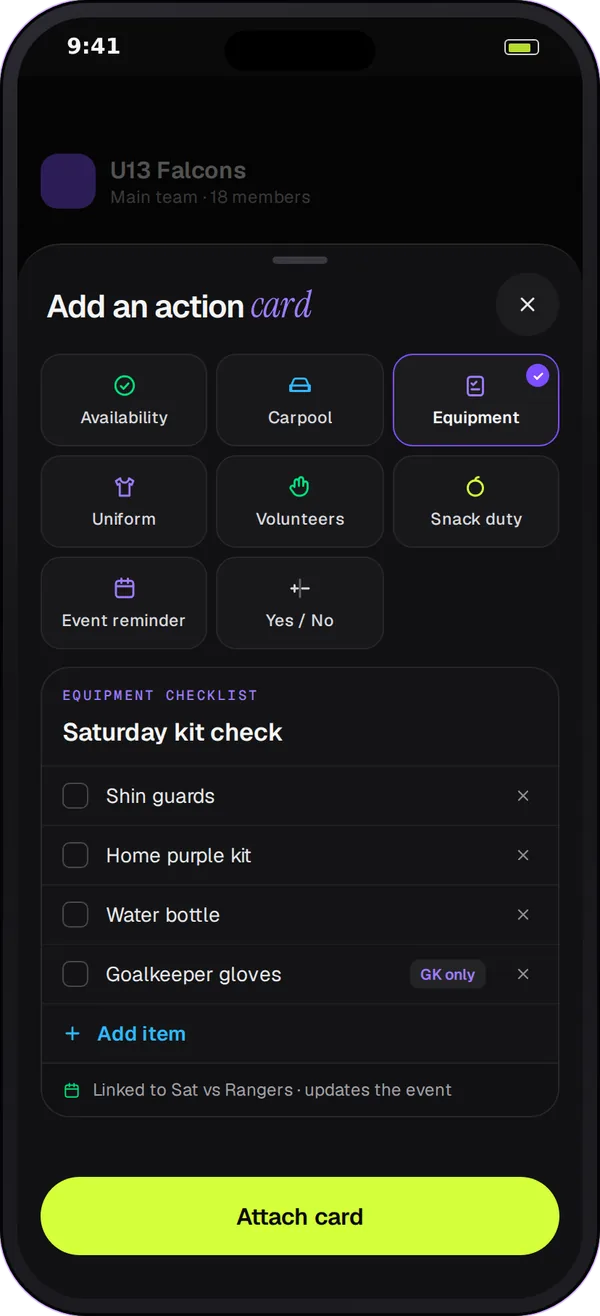
Action cards for team jobs
Carpool
List the drives as slots with a number of seats in each. Families claim a seat, and a slot can't be overfilled.
Snack duty
Make each week or each game a slot with one spot, and families claim the one that suits them.
Volunteers
Ask for help at the team table, the scorebook or the end-of-season party, with the number of spots for each job.
Uniform and equipment
Run a kit check: families confirm the jersey, shin guards or helmet is packed, so nobody finds out at the field.
Availability and quick questions
Ask who is available for a game, or a simple yes or no, such as "Pizza after the game?"
Event reminders
Send a reminder card tied to an event on the team's schedule.
Post a sign-up in 4 steps
-
Choose the card type
In the team channel or a parent-helper space, choose carpool, snack duty, volunteer, uniform, equipment, availability, yes or no, or an event reminder.
-
Add the slots
Give the card a title and add the slots, for example "Saturday away game: 3 drivers" with the seats for each, or one slot per week for snacks. Link the card to an event and set a closing time if you need one.
-
Families answer in the chat
Families tap to claim a slot or answer. They can change their answer later, and the card shows the live tally.
-
Remind and close
Send one reminder to the people who haven't answered, then close the card when the list is set.
Sign-up sheet vs action card
| Separate sign-up sheet | Team Chat action card | |
|---|---|---|
| Where it lives | A link families have to find | In the team's chat, next to the game it's for |
| Who can see it | Anyone with the link | The team's members |
| Slots and seats | Depends on the sheet | Slots with a spot limit; carpool slots count seats |
| Follow-up | Message the whole group | Remind only the people who haven't answered |
| Changes | Edit the sheet | Families change their own answer in one tap |
Sign-up checklist for team managers
- Post sign-ups in the parent-helper space or the Parents channel, so players' chat stays clear.
- One card per job: carpool and snacks are separate cards.
- Put the date and place in the slot names.
- Set a closing time for anything the coach needs to plan around.
- Remind once, then message the few gaps directly.
- Close the card when it's done, so families know the list is final.
Questions
Action cards come with Team Chat in Play 2 Earn Sports. Starter is free for clubs with up to 10 teams, and families join free. Carpool cards hold slots with a seat count, so drivers aren't overbooked.
Coaches and club admins post action cards in the team's conversations, and a parent who creates a parent-helper space can post them in that space. That makes a parent-helper space a good home for a team parent who runs carpools and snacks. Everyone else claims slots and answers.
Yes. Post one snack card with a slot for each week or each game, one spot per slot. Families claim their week, and the card shows which weeks are still open. For tips on running the schedule, see the team snack schedule guide.
Yes. A family can change their answer or their slot until the coach closes the card.
It's close. RSVPs for practices and games live on the team's schedule; see the team RSVP app. Action cards are for everything around them: rides, snacks, volunteers, kit and quick questions.
