


On this page
What a club chat app is
A club chat app is the messaging layer for a whole club, not one team. Each team still gets its own channels, but the club sets the rules once: how adults message young players, who can open new groups, and what the club can see when something goes wrong. That is what turns team chat from a coach's personal habit into something a club can stand behind.
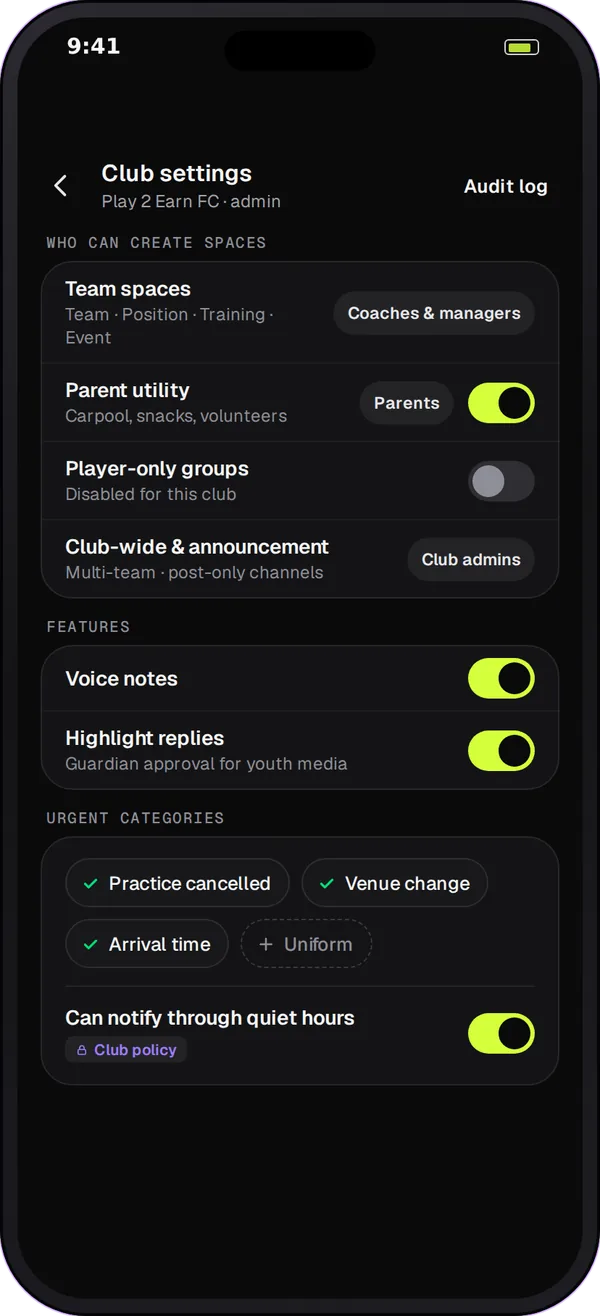
Club settings in Team Chat
Who can create spaces
The club decides who creates each kind of space. By default, coaches and club managers create team spaces, parents create parent-helper spaces, club admins create club-wide spaces, and groups started by players are off.
Feature switches
Turn features on or off for the whole club: voice notes, highlight replies, guardian approval of young players' highlights, post-game huddles and announcements.
Urgent categories
Choose which announcement categories can get through people's quiet hours, for example practice canceled, venue change and arrival time.
An audit log
Club owners and managers see a log of space changes, reported messages, highlight approvals and settings changes, with who did what and when.
The rules that apply to every team
These are built in, so a club doesn't have to rely on each coach remembering them:
- A linked parent or guardian joins any private chat between an adult and a player under 18, and can't be removed.
- Players under 14 can only message their own teammates privately; their coach can message them only with the parent copied.
- An adult can only start a private chat with a player on a team they coach or play on, or with their own child.
- If a player's age is missing, Team Chat treats them as a minor.
- Guardians can read their child's Team channel, event rooms and any space their child is in.
- Every space belongs to a club, a team or an event. Nothing is public.
- Reported messages go to the club's owner and managers and to the Play 2 Earn Sports admin queue.
What clubs can run in Team Chat
| Need | How Team Chat handles it |
|---|---|
| Club-wide news | Club-wide spaces and announcement spaces that only staff post in |
| Team talk | Team, Coaches and Parents channels for each team |
| Smaller groups | Position, training, event and parent-helper spaces, created by the roles the club allows |
| Important updates | Announcements with acknowledgements, a waiting list and reminders |
| Late-night messages | Quiet hours for each person, with the club's urgent categories let through |
| Problems | Report and block, with reports going to the club |
| Looking back | The club audit log, and archived spaces the club can still open |
Roll it out across the club in 4 steps
-
Set the club's rules first
Before inviting teams, choose who can create spaces, which features are on and which urgent categories get through quiet hours.
-
Add the teams and coaches
Add each team and its coaches. Every team gets its Team, Coaches and Parents channels.
-
Bring families in
Invite players and link each guardian to their own child, so the safe-sport rules and guardian reading work from day one.
-
Announce one standard
Post a club-wide announcement that official team messages now live in Team Chat, ask families to acknowledge it, and follow up with the teams that lag.
Club rollout checklist
- Write a one-page messaging standard and post it in a club-wide space.
- Set who can create spaces before teams start creating them.
- Decide which urgent categories should get through quiet hours.
- Make sure every player under 18 has a linked guardian.
- Tell coaches to stop using personal numbers to message minors.
- Name the club manager who reviews reported messages.
- Check the audit log after the first two weeks.
Questions
A team chat app gives one team a place to talk. A club chat app does that for every team and adds the club's layer on top: one set of rules, settings for who creates which spaces, club-wide spaces and announcements, reports that reach the club, and an audit log.
Club owners and managers can review team channels read-only for safeguarding, and they see reported messages and the audit log. They don't post in a team's channels unless they're members.
Not by default. Player-created groups are off until the club turns them on, and parent-created groups are limited to parent-helper spaces unless the club allows more.
Yes. Voice notes, highlight replies, huddles and announcements can each be turned off for the whole club, and the club can require a guardian or coach to approve a young player's highlight before it shows.
Team Chat comes with Play 2 Earn Sports. Starter is free for clubs with up to 10 teams, and players and families join free. Larger clubs can book a demo to plan the rollout.
