


On this page
Why coaches look for a Remind alternative
Remind is designed for schools: classes, teachers, students and their parents. Coaches who run a club or travel team outside school often find they are bending a classroom tool to fit a team. The roster isn't a class list, the schedule lives somewhere else, and there is no place for team things like availability, carpools or a play the players should study before Saturday.
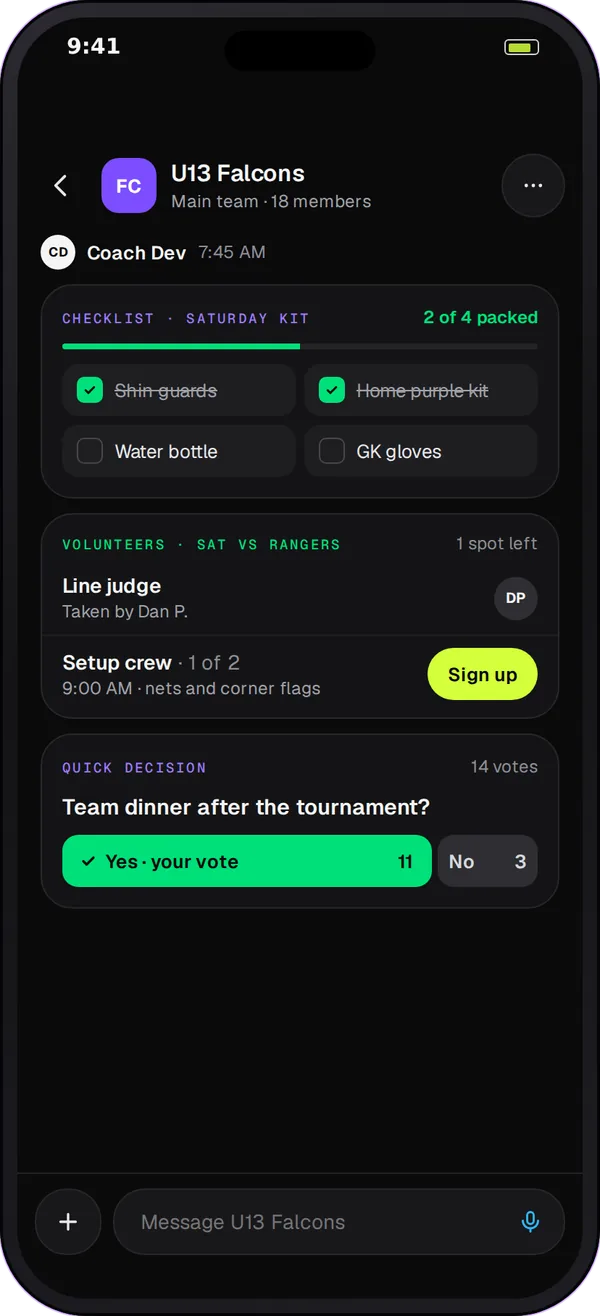
What a coach needs that a class tool doesn't have
A schedule that sends its own notices
In Play 2 Earn Sports the team's events live in the same app as the chat. When a team event or game changes, affected families get in-app, email and push notices by default, so the coach isn't retyping the change into a message.
Proof that people saw it
An announcement in Team Chat has an acknowledge button. The coach sees who acknowledged, who is still waiting and who asked a question, then reminds only the people still waiting.
Team jobs, not just messages
Action cards ask the team for something specific: availability for a game, carpool seats, snack duty, volunteers, uniform or equipment checks, or a quick yes or no.
Rules for adults and minors
A private chat between an adult and a player under 18 brings in the player's linked guardian, and players under 14 can only message their own teammates privately.
Remind vs Team Chat for a club team
| Need | Remind | Team Chat |
|---|---|---|
| Built around | School classes | Teams and clubs, with players, coaches, staff and linked guardians |
| Team schedule | Not built around a team's season | Events in the same app, with change notices to affected families |
| Confirming an important update | Built for class messages | An acknowledge button, a waiting list and a reminder to the people still waiting |
| Team sign-ups | Not built for team jobs | Action cards for availability, carpools, snacks, volunteers and kit |
| Coaching tools | Not the focus | Play cards drawn on your sport's board, polls and post-game huddles |
| Parents and young players | Set by the school's setup | Guardians linked to their child and in view of adult-to-minor chats |
How Team Chat fits a coach's week
-
Monday: the plan
Post the week as an announcement and ask the team to acknowledge it. On Tuesday, send a reminder to the people who still haven't.
-
Wednesday: the details
Send an action card for Saturday's carpool with a few seats per driver, and a play card for the new corner routine.
-
Saturday: game day
The game's event room shows the countdown, the venue, the arrival time and the kit, so the team checks one place instead of scrolling back.
-
Sunday: the look back
Ask a huddle question such as "What worked on defense?" Players can answer anonymously, and the coach shares the answers they choose as a team recap.
Switch from Remind in 4 steps
-
Create your club and team
Start a free club account and add your team. Starter is free for clubs with up to 10 teams.
-
Invite your players and families
Invite players and link each guardian to their own child, so the right people see the right conversations.
-
Add the season's events
Put practices and games on the team's schedule, so changes send their own notices.
-
Send the switch announcement
Post one announcement in Remind and one in Team Chat with the switch date, then use the acknowledgement list to see who has made the move.
Questions
Yes. Play 2 Earn Sports Starter is free for clubs with up to 10 teams, and Team Chat comes with it, along with the team schedule. Players and families join free.
Team Chat is built for clubs and teams, so a coach can set up a team on Play 2 Earn Sports. If your school requires its own messaging tool for school teams, follow that policy; many coaches use Team Chat for club, travel or summer teams.
Team Chat sends in-app and push notifications, and the club's announcements can also go by email when the club's mail is connected. Families open Team Chat in the web app on their phone or computer.
Not from the App Store or Google Play yet. Team Chat runs in the Play 2 Earn Sports web app in a phone's browser and can be added to the home screen, so there's nothing to download from a store.
The coach chooses the reply setting for the announcement. A common choice is questions only, so the announcement doesn't turn into a reply-all thread, and the coach sees each question listed with the acknowledgements.
