

On this page
Player registration in Club OS by Play 2 Earn Sports is built for a parent on a phone: open your club's link, add your child, choose a program, answer the club's questions, review the total and pay through Stripe. It runs in a phone browser, so there's nothing to install.
What a parent actually does
The steps follow the order a family thinks in, and your child's details carry over next season instead of being typed again.
| Step | What you see |
|---|---|
| Open the club's link | The programs the club has published, with prices |
| Sign in or create an account | One account for your family |
| Choose your child | Your children, or add one |
| Answer and agree | The club's questions, waivers and refund policy |
| Review and pay | The total, then Stripe's secure page |
| Check your status | Registered, what's left to pay and your receipts |
How Club OS helps families register
-
One family, several children
Add each child once. Register one or more of them for a program, and the club's questions are asked for each child.
-
No surprises at checkout
You see the total, any discount and any fee before you pay, and you agree to the club's refund policy first.
-
Your card stays with Stripe
You pay on Stripe's own secure page. Club OS never sees your card number, and the payment is made to your club.
-
Pick up where you left off
If you close the page before paying, your registration waits for you. Open the club's page again and continue to payment.
-
Status you can trust
We only show a registration as paid once Stripe has confirmed the payment, so you won't see "registered" for a payment that didn't go through.
-
Receipts and refunds in one place
My registrations shows each child's program, what's been paid, what's left, the schedule, your receipts and any refund from the club.
Register your child in 4 steps
-
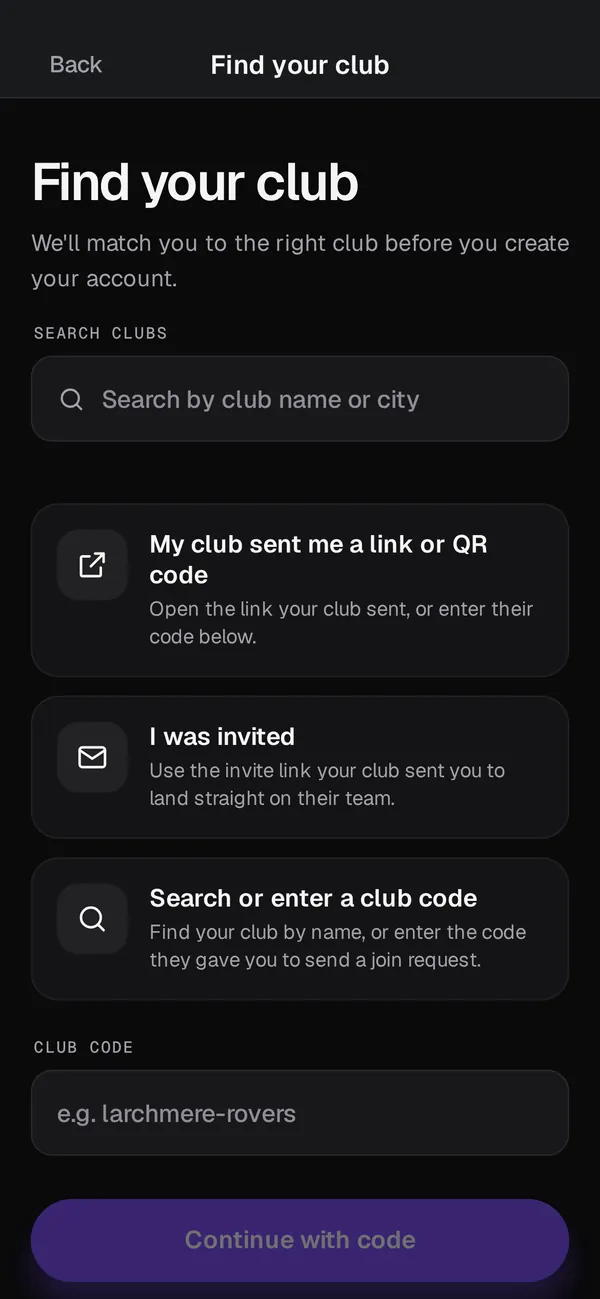
Open your club's link
Your club shares it by email, on its website or in Team Chat.
-
Add your child
Sign in or create an account, then add your child if they aren't already there.
-
Answer the club's questions
Answer the questions and waivers the club has set for that program.
-
Review and pay
Check the total, agree to the refund policy and pay on Stripe's secure page.
Children's information
A parent or guardian registers a child and manages the child's profile. A child's answers go to the club, not to other families. You can ask to delete your account from your account page.
Questions
No. Online registration runs in a phone browser, so there's nothing to install.
Only clubs that have opened online registration show programs, so ask your club if you don't see yours.
Nothing is marked as paid. Stripe shows the problem on its page so you can try another card, and you can come back to the club's page to continue.
The full amount is paid at registration. Ask your club if the full amount is a problem, because it may offer financial aid.
Your club. Each club sets its own refund policy, which you read before paying, and club staff handle refunds.
Wait a moment and check again before paying a second time. Payment confirmations can take a short while to reach us.
