

In this guide
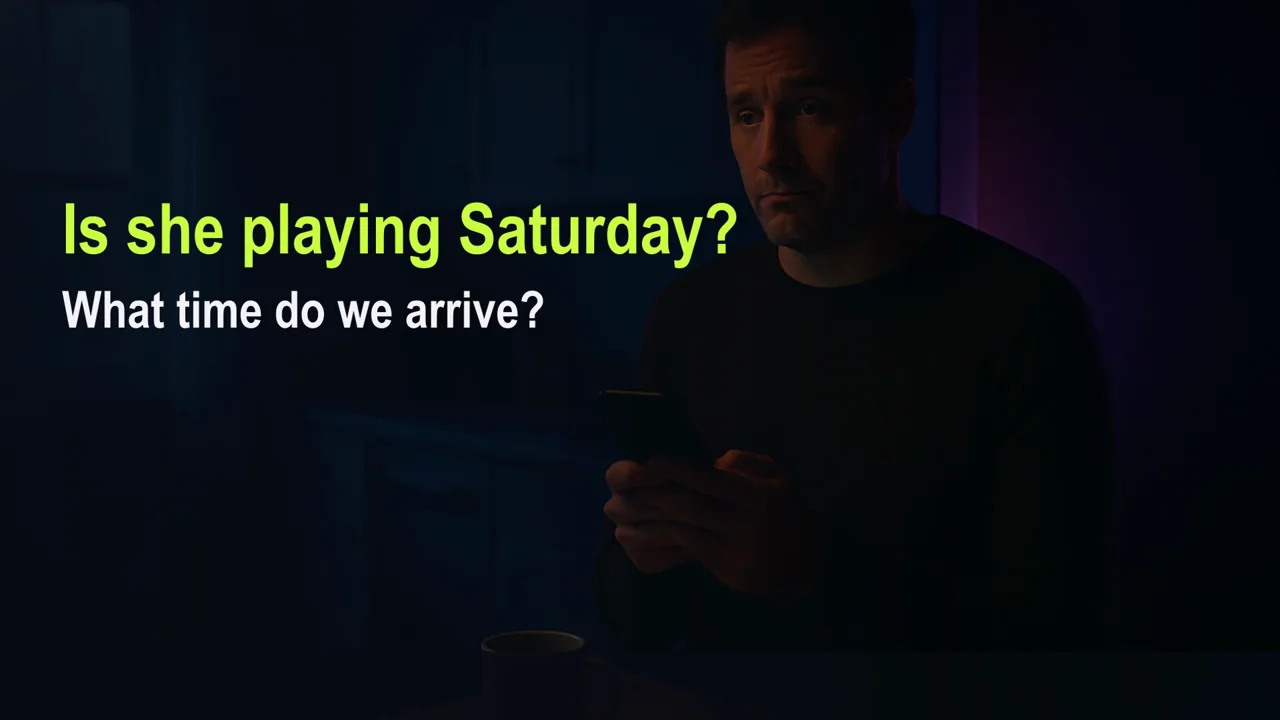
The question club leaders ask: "Why do parents keep asking us whether their kid is playing, what time to arrive and where the game is? It's all been sent."
Watch the six-item parent checklist
What parents are really asking
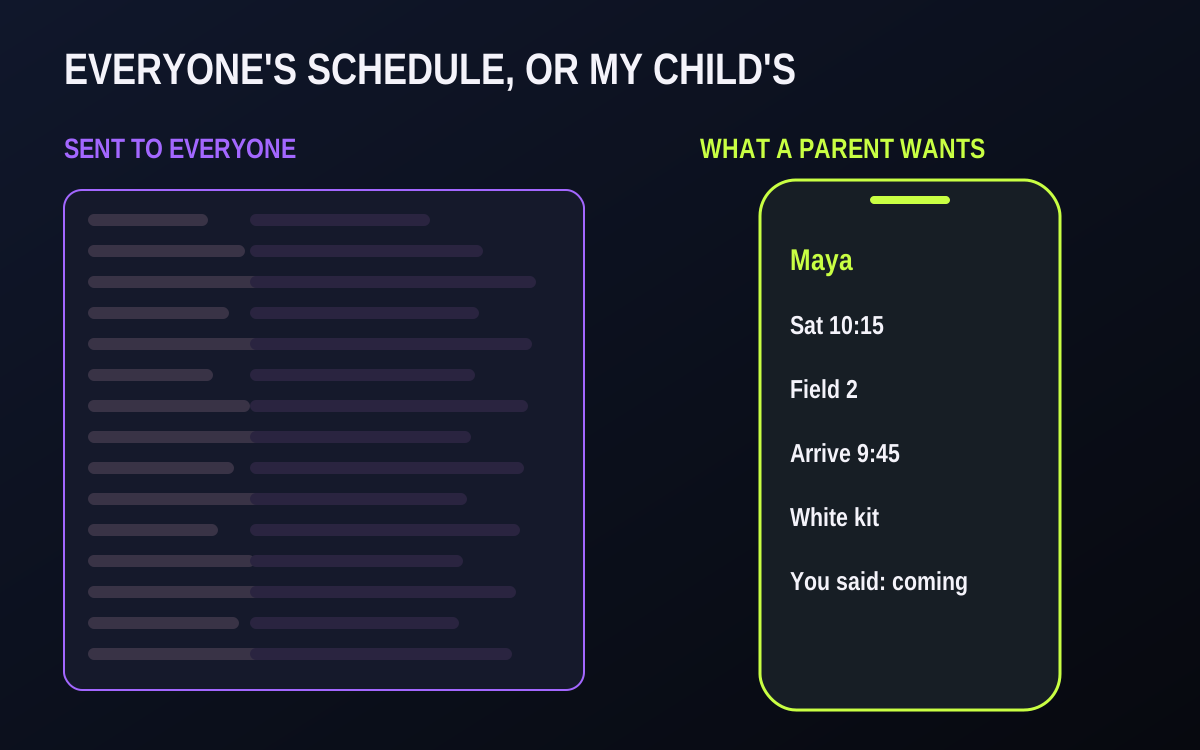
Sort the "quick questions" your coaches receive and you may find they fall into six groups:
When and where is my child's next game or practice?
What time should we arrive, and what do they wear or bring?
Did I already say we're coming?
Which team or group is my child in, and what position?
Did anything change?
How is my child doing?
If a family can answer the first five on their own phone, the coach only gets the sixth — which is the conversation coaches actually want to have.
What it costs when they can't see it
- The same question, twenty times. Every family asks separately, and the coach answers separately.
- Wrong headcounts. Without a clear answer from each family, coaches plan for players who don't come.
- Parents feel shut out. Not knowing the basics makes a family feel like a customer, not part of the club.
- Two-parent families miss things. The details reach the parent who registered, not the one doing the driving.

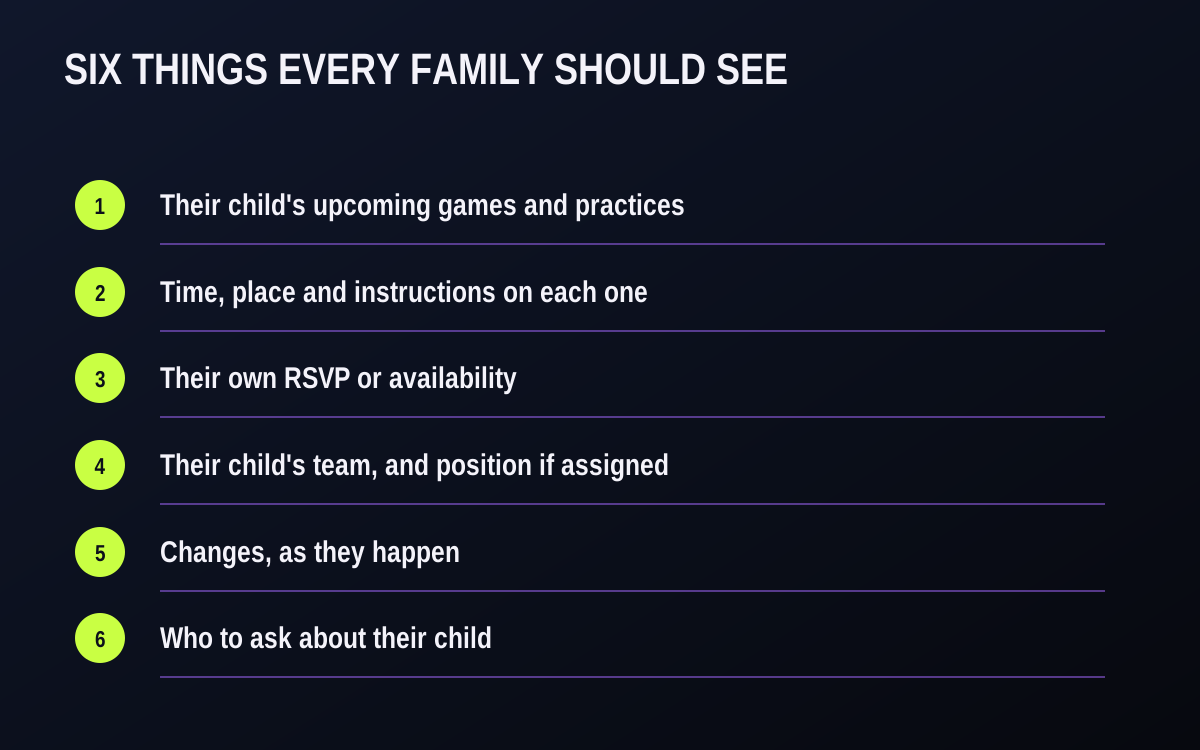
The six things every family should see for their own child
1. Their child's upcoming games and practices — not the whole club's calendar.
2. Time, place and instructions on each one — arrival time, kit and directions written on the game itself, not in a separate message.
3. Their own RSVP or availability — what they answered, and the chance to change it.
4. Their child's team, and position if your club assigns one — decide as a club whether positions are shown; don't leave it to each coach.
5. Changes, as they happen — a moved game should reach the family, not wait for them to check.
6. Who to ask about their child — the coach, through the club's channel, for questions about the player.
And be clear about attendance. An RSVP is a promise; attendance is what happened. If you track attendance, decide how families hear about it — for example, the coach mentions a pattern of missed practices in a short, private conversation, rather than parents discovering it at the end of the season.
How to set this up at your club
- Link every guardian to the child, not just the one who registered. Ask at registration: "Who else drives, picks up or needs game details?" Separated parents, grandparents who do the Tuesday run and step-parents can all be on the list, if the family wants them there.
- Write the details on the game: arrival time, kit, directions. Use the same order on every event so families know where to look. A short template (see the worked example below) saves coaches from writing it fresh each week.
- Ask for an RSVP on every game and practice, with a reply-by time. Put the reply-by time in the description, and agree what the coach does when there is no reply: one reminder, then a direct message the day before.
- Decide your position policy and apply it in every team. Some clubs show positions for older age groups only; others do not show them for young players who rotate. Either can work if every team does the same.
- Tell families at registration where to look: "Your child's schedule and details are always in the app. If it's not there, ask the coach."

Worked example — a game description template and an RSVP week
Illustrative example, not a real club.
Here is a description a coach can paste into every game and edit in under a minute. The same layout works for a volleyball tournament day, a lacrosse game or a hockey game at an away rink.
Arrive by: 9:30 a.m. (game starts 10:15)
Where: Lakeside Park, Field 2. Park in the north lot; the field is behind the clubhouse.
Wear: White top, navy shorts, white socks. Shin pads.
Bring: Water bottle, a snack for after, rain jacket.
Reply by: Thursday 8:00 p.m. so the coach can plan the lineup.
Questions about your child? Message the coach in the team channel.
And here is how one game's week can run, with the family seeing only their own child's view:
| Day | What the family sees | What the coach does |
|---|---|---|
| Sunday | Next Saturday's game appears with the description above | Creates the game and checks the venue |
| Monday | RSVP request and reminder | Nothing yet |
| Thursday 8 p.m. | Reply-by time passes | Checks who has not replied |
| Friday | A direct message if they have not replied | Messages only those families |
| Saturday | The same game, unchanged, or a change notice if it moved | Plans the lineup from the replies |
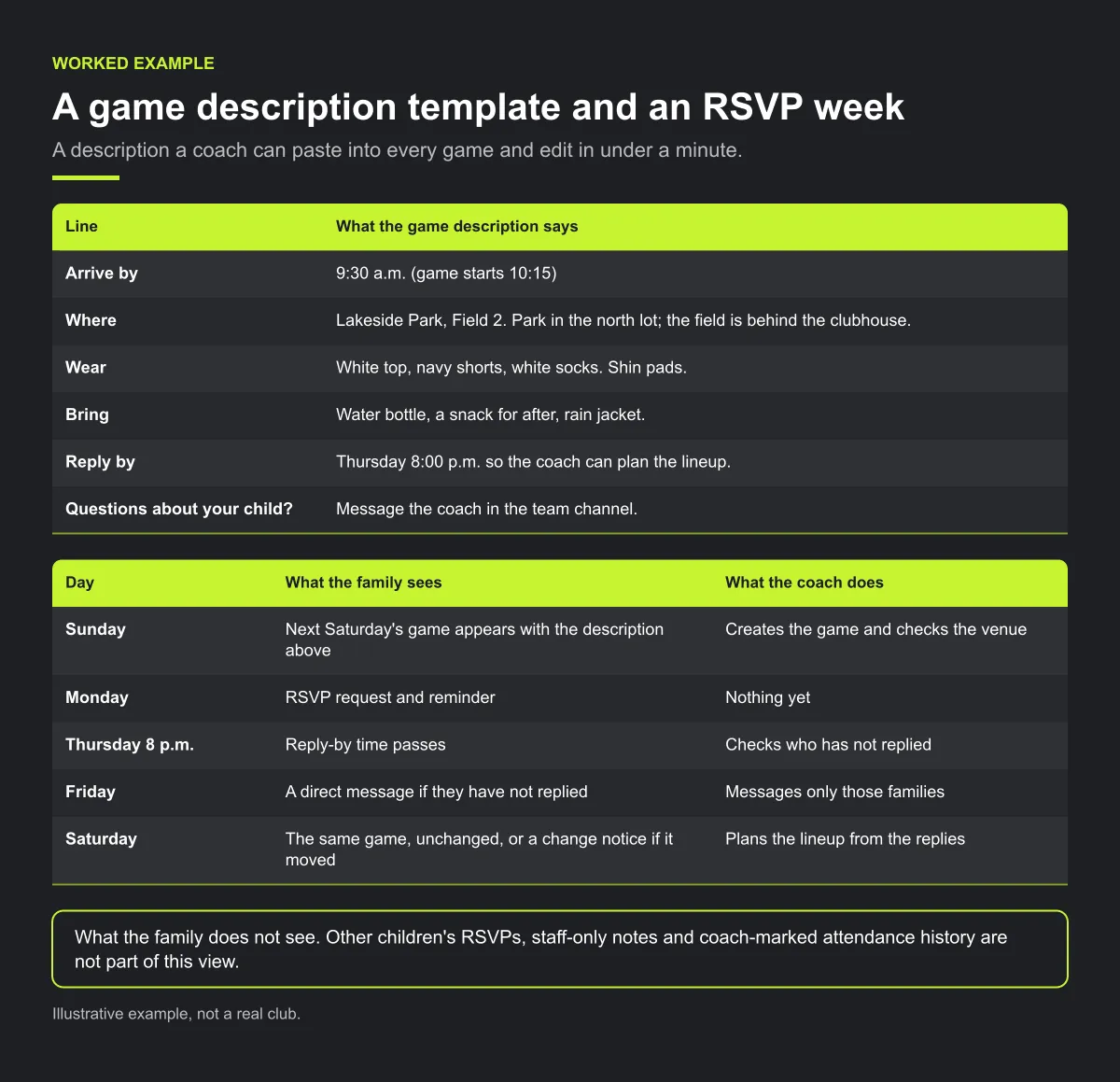
What the family does not see. Other children's RSVPs, staff-only notes and coach-marked attendance history are not part of this view. If attendance matters for a player, the coach raises it in a short, private conversation.
Checklist: is your parent view complete?
- Every guardian who needs details is linked to the child.
- Every game and practice has arrival time, place, kit and a reply-by time in its description.
- Families have been told where to look, in one sentence, at registration.
- Your club's position policy is written down and the same in every team.
- Coaches know who to follow up when the reply-by time passes.
- Families know that a moved game will reach them as a notice.
Common mistakes
- Details in a message, not on the game. A family checking on Saturday morning looks at the game, not last Tuesday's chat.
- Only one parent linked. The parent who registered may not be the one at the field. Ask who else needs details.
- Treating an RSVP as attendance. A "yes" is a plan; attendance is what happened. Keep the two apart when you talk to families.
- Different templates in every team. When each coach writes details their own way, families with two children in the club have to learn two layouts.
How Play 2 Earn Sports supports this
- A parent sees their own child. A linked parent or guardian opens their child's dashboard, and can switch between children if they have more than one in the club. They stay signed in as themselves.
- More than one guardian. A child can be linked to more than one parent or guardian.
- Event details for the family. Each game or practice shows the date and time, venue, team and its description — where the club writes arrival time, kit and directions.
- The child's own RSVP and availability. Families answer for their child on each event and can see what they answered. Coaches see who has not replied.
- Team and position. Team rosters show positions where the club has set them.
- Change notices. When a game is moved or restored, the people in that game are told in the app, by email, by push where enabled and in team chat.
- Shared evaluations, where your club turns them on. If a coach shares an evaluation with a player, the family can see that shared evaluation. Private staff notes are not shown.
See exactly what a parent sees.
Where parents can see evaluations and feedback
Frequently asked questions
Their own child's upcoming games and practices, the time, place and instructions for each, their own RSVP or availability, their child's team (and position if your club assigns them), changes as they happen, and who to contact about their child.
Decide as a club. An RSVP shows what a family said; attendance shows what happened. Many clubs have the coach raise attendance patterns in a short private conversation rather than publishing a record.
Write arrival time, kit and directions on the game itself, so the answer is in the same place as the time and field.
They should. Link every parent or guardian who needs to know to the child, not only the person who registered.
Only if your club has a clear position policy that every team follows. Inconsistent position information causes more questions than none.
Starter is free for clubs with up to 10 teams. Pro is $49.67 USD a month for 11 to 25 teams. Unlimited is $99.67 USD a month for 26 or more teams. Every feature is on every plan, and players and parents are always included. See pricing.
Related guides
- Parent communication guides: every parent communication guide in one place.
- Parents keep missing schedule changes
- Coaches getting late-night parent messages
- Sports club management software
- Pricing
