

In this guide
- Why switching feels impossible
- Step 1 — export what you can, before you need it
- Step 2 — pick the timing
- Step 3 — the switch checklist
- Step 4 — run both, briefly
- Worked example — spot-checking an imported season
- Step 5 — tell clubs and families three times
- How Play 2 Earn Sports supports this
- Frequently asked questions
- Related guides
The question league organizers ask: "We want to change apps, but our whole season is in the old one. Hundreds of games, every roster, every venue. Do we really have to type it all again, and how do we switch without confusing every family in the league?"
Why switching feels impossible
- The schedule is trapped. Nobody checked what the old app can export until the day they wanted to leave.
- Two sources of truth. For a few weeks, some families look in the old app and some in the new one, and a moved game only changes in one.
- Bad timing. Switching the week of playoffs or registration adds risk at the worst moment.
- Families hear last. A parent finds out from another parent that "the app changed".
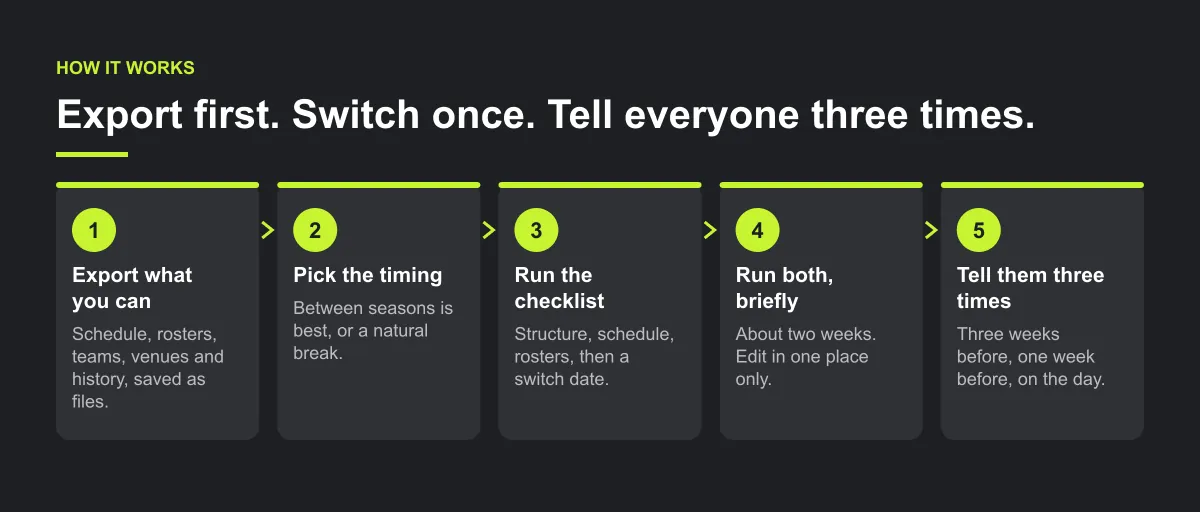
Step 1 — export what you can, before you need it
Check your old app's export options now, and save copies of:
The schedule.
A calendar link for each team or the league, if the app offers one, and a spreadsheet export of every game: date, time, venue, home, away, division.
Rosters.
A CSV of players by team, with the parent or guardian contacts your club is allowed to keep.
Teams, divisions and venues.
Names and addresses, so they match exactly in the new app.
History you want to keep.
Standings, results, referee assignments and season reports, saved as files for your records.
Your contract dates.
When the old subscription renews, and how much notice cancelling needs.
Import only what you need. Rosters hold children's information, so keep the files private and delete working copies once the switch is done.
Step 2 — pick the timing
Between seasons is best. No games are moving, families are already expecting new information, and next season can start in the new app from day one.
If you must switch mid-season, pick a natural break, such as after a tournament weekend or a holiday pause. Avoid the weeks of playoffs, registration deadlines and the first games of the season.
Step 3 — the switch checklist
Checklist: switching league apps
- Structure set up: league, divisions, teams and venues, named exactly as in your export.
- Schedule brought in and at least 20 games spot-checked (date, time, venue, home and away, division), including every venue and any game after a clock change.
- Every problem in the sample traced to its cause, and all games sharing that cause checked.
- Rosters imported; one team per division checked by hand.
- Club contacts and coaches invited first, to check their own teams for a few days.
- Switch date written down: "From [date], the new schedule is the only one."
- Families invited a week before; old app read-only from the switch date.
- Old app closed after two weeks; exported files kept privately.
Step 4 — run both, briefly
A short overlap helps families who haven't joined yet, but it only works with one rule: edit in one place only. After the switch date, every change happens in the new app. The old app is read-only, and its schedule carries a note pointing families to the new one. Keep the overlap to about two weeks. Longer, and the two schedules drift apart.
Illustrative example, not a specific league.
Here is an example. A league keeps both apps live for a whole month and lets each club choose. A game moves in the new app; one club only checks the old one, and its team arrives at the wrong venue. A switch date, one editing place and a two-week overlap could have prevented it.

Worked example — spot-checking an imported season
Illustrative example, not a specific league.
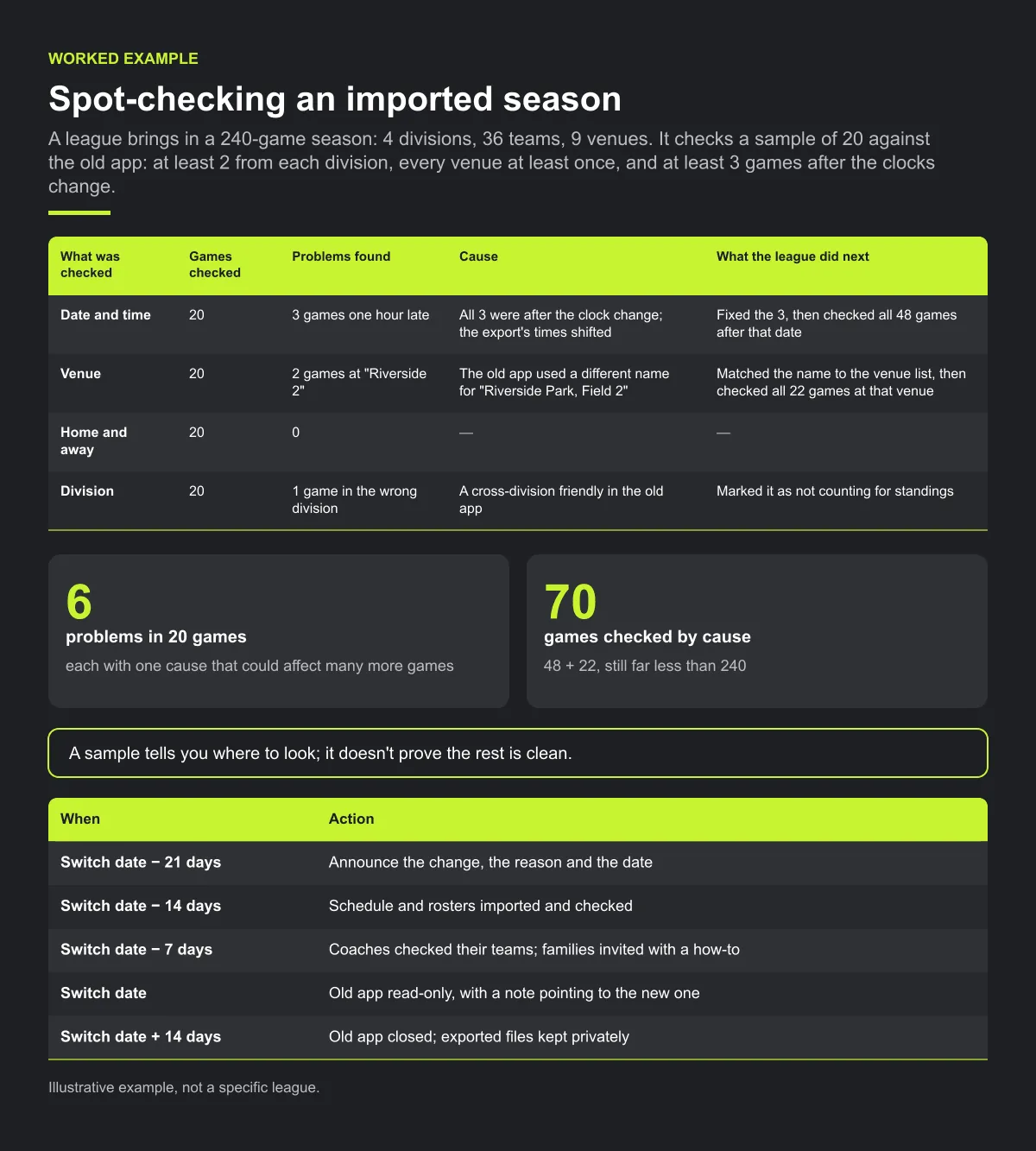
A league brings in a 240-game season: 4 divisions, 36 teams, 9 venues (fields, rinks and courts across its divisions). Rather than check every game by hand, it checks a sample of 20: at least 2 from each division, every venue at least once, and at least 3 games after the clocks change. It compares each one with the old app.
| What was checked | Games checked | Problems found | Cause | What the league did next |
|---|---|---|---|---|
| Date and time | 20 | 3 games one hour late | All 3 were after the clock change; the export's times shifted | Fixed the 3, then checked all 48 games after that date |
| Venue | 20 | 2 games at "Riverside 2" | The old app used a different name for "Riverside Park, Field 2" | Matched the name to the venue list, then checked all 22 games at that venue |
| Home and away | 20 | 0 | — | — |
| Division | 20 | 1 game in the wrong division | A cross-division friendly in the old app | Marked it as not counting for standings |
The sample found 6 problems in 20 games, but the real lesson is in the "Cause" column. Each problem had one cause that could affect many more games, so the league checked every game sharing that cause: 48 + 22 = 70 games, still far less than 240. Then it re-ran the same 20-game check and found none. A sample tells you where to look; it doesn't prove the rest is clean.
The timeline the league published:
| When | Action |
|---|---|
| Switch date − 21 days | Announce the change, the reason and the date |
| Switch date − 14 days | Schedule and rosters imported and checked |
| Switch date − 7 days | Coaches checked their teams; families invited with a how-to |
| Switch date | Old app read-only, with a note pointing to the new one |
| Switch date + 14 days | Old app closed; exported files kept privately |
Common mistakes
- Fixing sample errors one by one. Find the cause, then check every game that shares it.
- Renaming venues after the import. Names that don't match the old export make the spot-check harder. Match them first.
- Editing in both apps during the overlap. A moved game then exists in two versions.
- Switching during playoffs or registration. Families are already busy with dates that matter.
Step 5 — tell clubs and families three times
Three weeks before:
what is changing, why, and the switch date.
One week before:
how to join and install the app, with a short how-to.
On the switch date:
"From today, the schedule is here." Coaches repeat it at the next practice or game.
Send it from the league, and ask each club to forward it, so every family hears it from someone they know.

How Play 2 Earn Sports supports this
- Schedule import from a calendar link. If your old app gives you a calendar link, the games come in from that link. It is a one-way import into Play 2 Earn Sports, so after the switch date, make changes in Play 2 Earn Sports only.
- Roster import from CSV. Bring team rosters in from a spreadsheet instead of typing every player.
- Not a full migration. Results history, standings, messages, documents and financial records from the old app don't move across. Keep the files you exported in step 1.
- Families install the app from the website on iPhone and Android, so your how-to message is one link.
- Change notices after the switch. When the league approves a club's request, the clubs and the referee are told. Tell everyone else in the game yourself.
- Guardians linked to their children. A child can be linked to more than one parent or guardian.
See your current schedule brought in from a calendar link.
Frequently asked questions
Export the schedule and rosters first, set up the same divisions, teams and venues, bring the schedule in and spot-check it, import rosters, pick a switch date, then tell clubs and families three times.
Between seasons. If it has to be mid-season, choose a natural break and avoid playoffs, registration deadlines and the first games of a season.
Briefly, about two weeks, with one rule: after the switch date, edit only in the new app and point the old schedule to it.
The schedule (a calendar link and a spreadsheet export), rosters with the guardian contacts you're allowed to keep, teams, divisions and venues, and any history you want for your records.
No. It imports the schedule from a calendar link, one way, and rosters from a CSV file. Results history, standings, messages, documents and financial records stay in the files you export.
Starter is free for clubs with up to 10 teams. Pro is $49.67 USD a month for 11 to 25 teams. Unlimited is $99.67 USD a month for 26 or more teams. For leagues, Starter is free for up to 10 clubs, League Pro is $97.85 USD a month for 11 to 25 clubs, and League Unlimited is $196.35 USD a month for 26 or more clubs. Every feature is on every plan, and players and parents are always included. See pricing.
Related guides
- League scheduling guides: every league scheduling guide in one place.
- Parents keep missing schedule changes
- Club communication standards
- Schedule import
- Sports league scheduling software
- Pricing
